
Find the log files through the Muute app
In case the Muute app can be started without problems, you can easily find the log file directory through the app:
-
Open Muute.
- On the start screen, click on the 'i' in the top left corner.
- Click on the button 'Open log file directory'.
- The app will now close and opens the file explorer in the correct folder.
- Here you will see a file 'main.log' and potentially a 'main.old.log' file.
- Send the file(s) to support@muute.com as an attachment to your email as well as a recording of the issue you encountered.
Windows - Find the log files directly through the file explorer
In case the previous method did not work, you can also find the log file manually:
-
Open File Explorer
- Enter the following text in the navigation bar of File Explorer: %APPDATA%\muute\logs
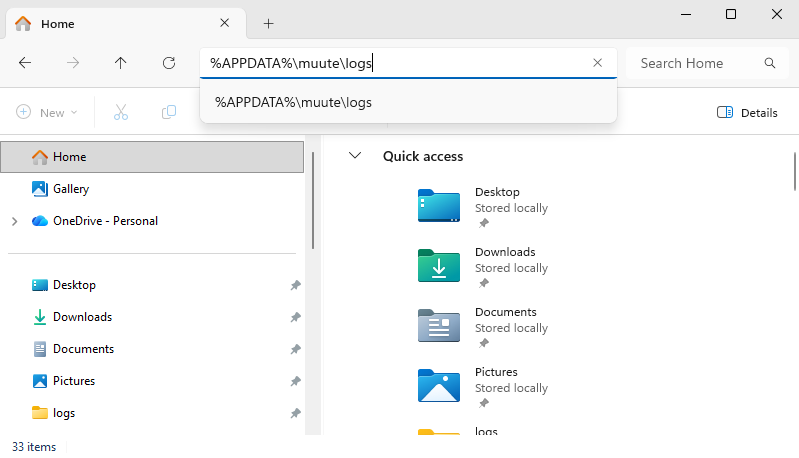
- Hit enter.
- Here you will see a file 'main.log' and potentially a 'main.old.log' file.
- Send the file(s) to support@muute.com as an attachment to your email as well as a recording of the issue you encountered.
macOS - Find the log files directly through the Finder
-
Open macOS Finder
- Choose 'Go > Go to Folder...'
- Enter the following text: ~/Library/Logs/Muute
- Here you will see a file 'main.log' and potentially a 'main.old.log' file.
- Send the file(s) to support@muute.com as an attachment to your email as well as a recording of the issue you encountered.