
Troubleshooting yourself
You can first try to troubleshoot the problem yourself:
- Have you tried closing any other (background) application before starting the app and see if the problem persists?
- Have you checked that you have a stable internet connection? If not, switch networks or use a cable for network access and see if the problem persists.
-
Have you tried restarting the app and see if the problem persists?
- Have you tried restarting your device and see if the problem persists?
- Do you have any third-party antivirus or firewall products installed which blocks the functioning of the app? If so, try to temporary disable those products and see if the problem persists. See also this knowledge base article about antivirus & firewall problems.
- Do you use a VPN? If so, try to temporary disable the VPN and see if the problem persists.
- Have you checked that your time is correctly configured and synchronized with the real time?
In case of urgency for taking a test, we always advice to use a different device that does not have the issues you encounter and contact support after the test. It is very likely that there is only a problem on a single device due to configurations issues rather than the app not working on every device.
Troubleshooting with support
In case of any unexpected problems, you may need to contact your support contact point in order to diagnose problems with the Muute app. It is necessary to send sufficient information in order to help you with your problem, otherwise it will not be possible to support you. Therefore you need to send at least the following information:
-
The information you can find in the 'i' information popup on the top left of the start screen. You can take a picture with a mobile phone of this information. In case you cannot open the Muute app, please send at least the following information:
- Exact version of the Muute app
- OS version: Windows 10, Windows 11 or which specific macOS version (for example 'macOS 15.7.3')
- Log files, see our support article on how to find the log files. Send both 'main.log', and 'main.old.log' if available.
- The exact laptop/PC model and/or generation you used.
- Is there anti-virus installed on your device? If so, which one? This could be Windows Defender (default), MacAfee, Norton, Avast or similar products.
- Is there a firewall configured by any third-party application? Anti-virus products may automatically configure a firewall. Check your settings to verify this.
- Do you use a managed device (such as a school-provided laptop) or is this device BYOD (Bring Your Own Device)?
- The laptop/PC hardware specifications:
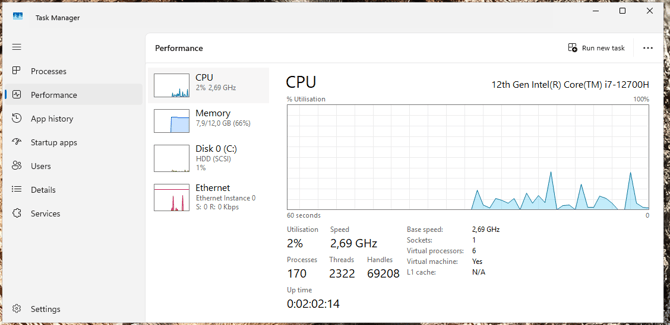
- For Windows: a screenshot of the following tab on Task Manager will help in finding the CPU type, amount of CPU cores and amount of available memory. Please include a screenshot of this tab on your device.
- For macOS: choose the Apple logo in the top right corner -> About This Mac and send the following information: Chip, Memory, macOS.
- For Windows: a screenshot of the following tab on Task Manager will help in finding the CPU type, amount of CPU cores and amount of available memory. Please include a screenshot of this tab on your device.
- A recording of the problem. Use an external device, such as a phone, to record the screen. The recording should start when the Muute app has not been opened such that every step taken is recorded. A recording is mandatory in order to effectively troubleshoot the problem.
- The exact time you encounter the issue, at least the exact minute and preferably the exact second.
- If relevant, the exact room name, email address of the account that created the room and start time of the room you used to join during the problem.
We may contact you to provide further information that is necessary for investigation.